Read your form messages
Every message sent through a form on your website lands in your portal. Open one, reply from your own email, archive it when it is dealt with, or export them all.
Forms guide, about 1 minute. Recorded November 18, 2026.
Open Forms
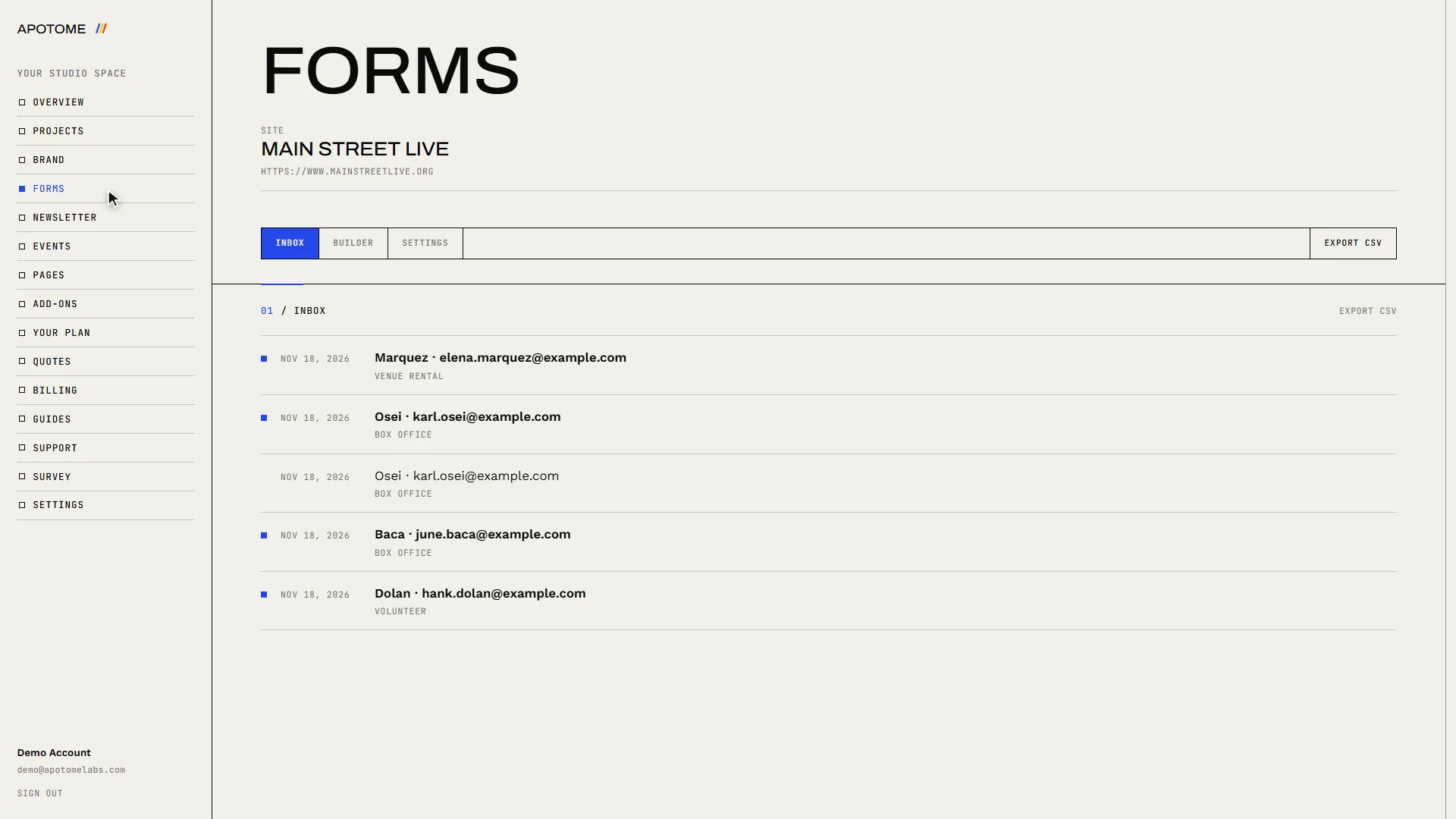
Choose Forms in the menu on the left. It opens on your Inbox.
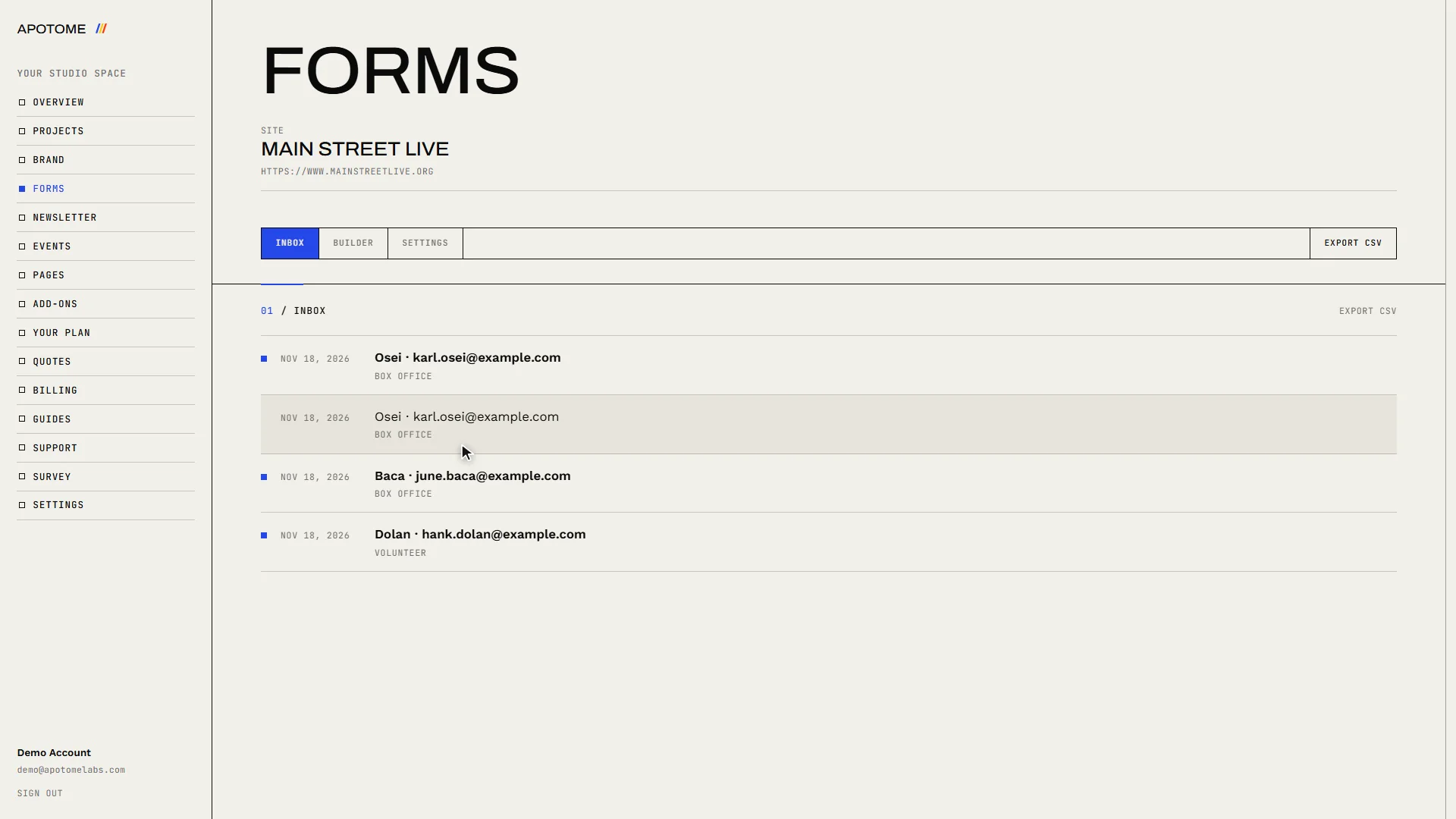
Read the list
The newest message is at the top. Each line shows when it arrived, who sent it and which form they used.
Open a message
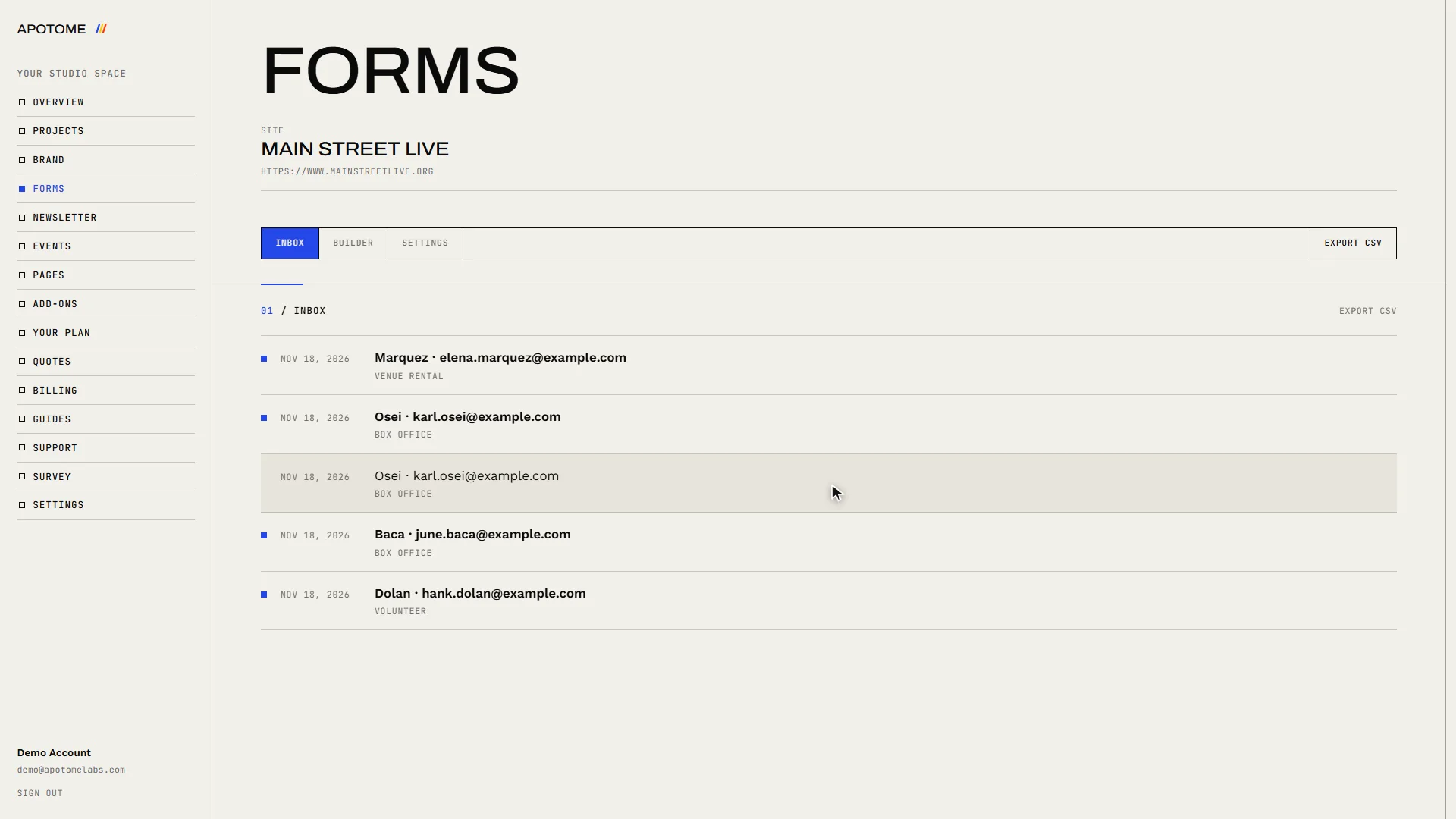
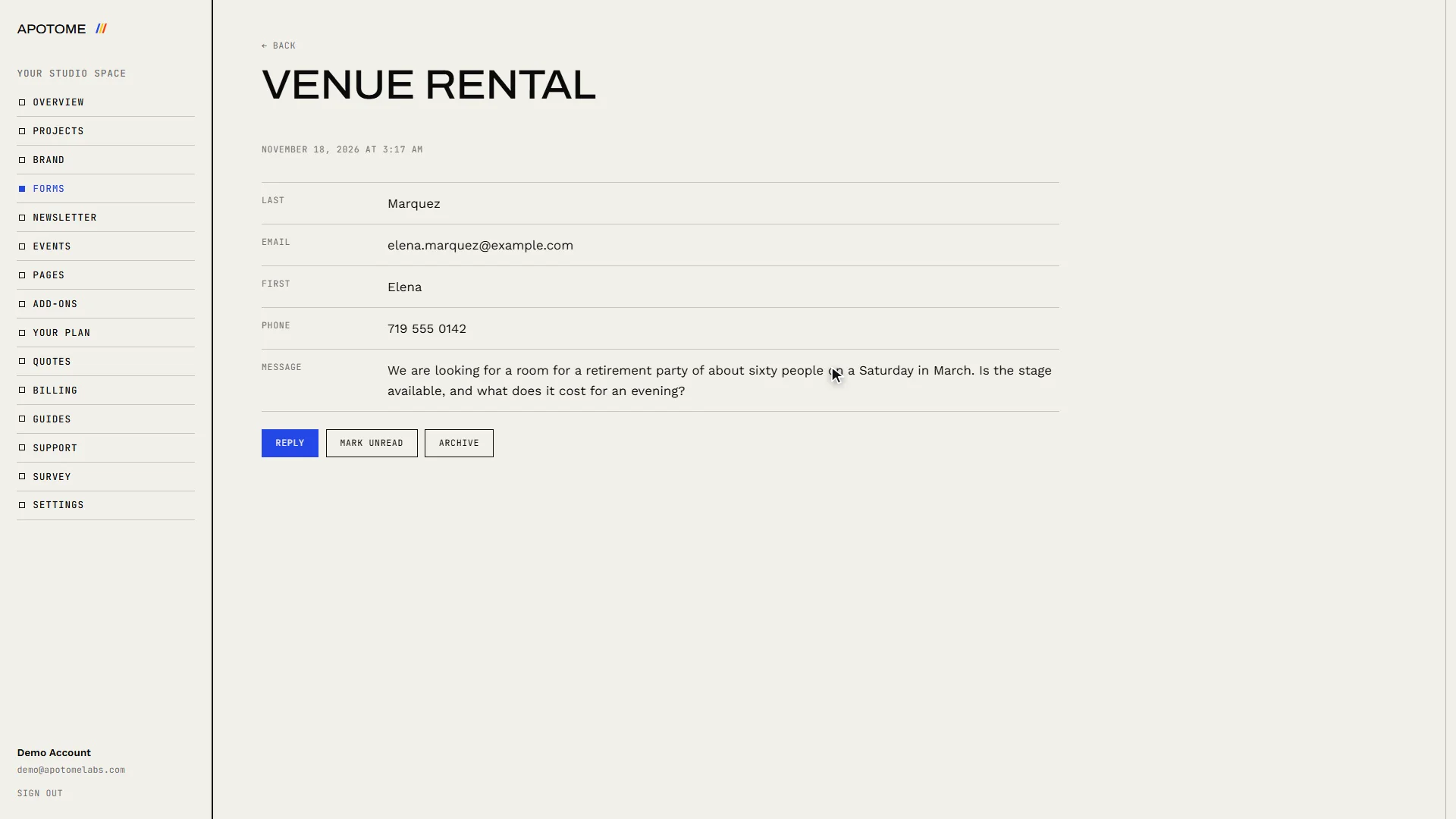
Select a message to read it in full, with everything the sender filled in.
Reply
Reply opens a new message in your own email program, already addressed to the sender. Your answer goes from your address, so the conversation carries on in your own inbox.
Archive it when it is dealt with
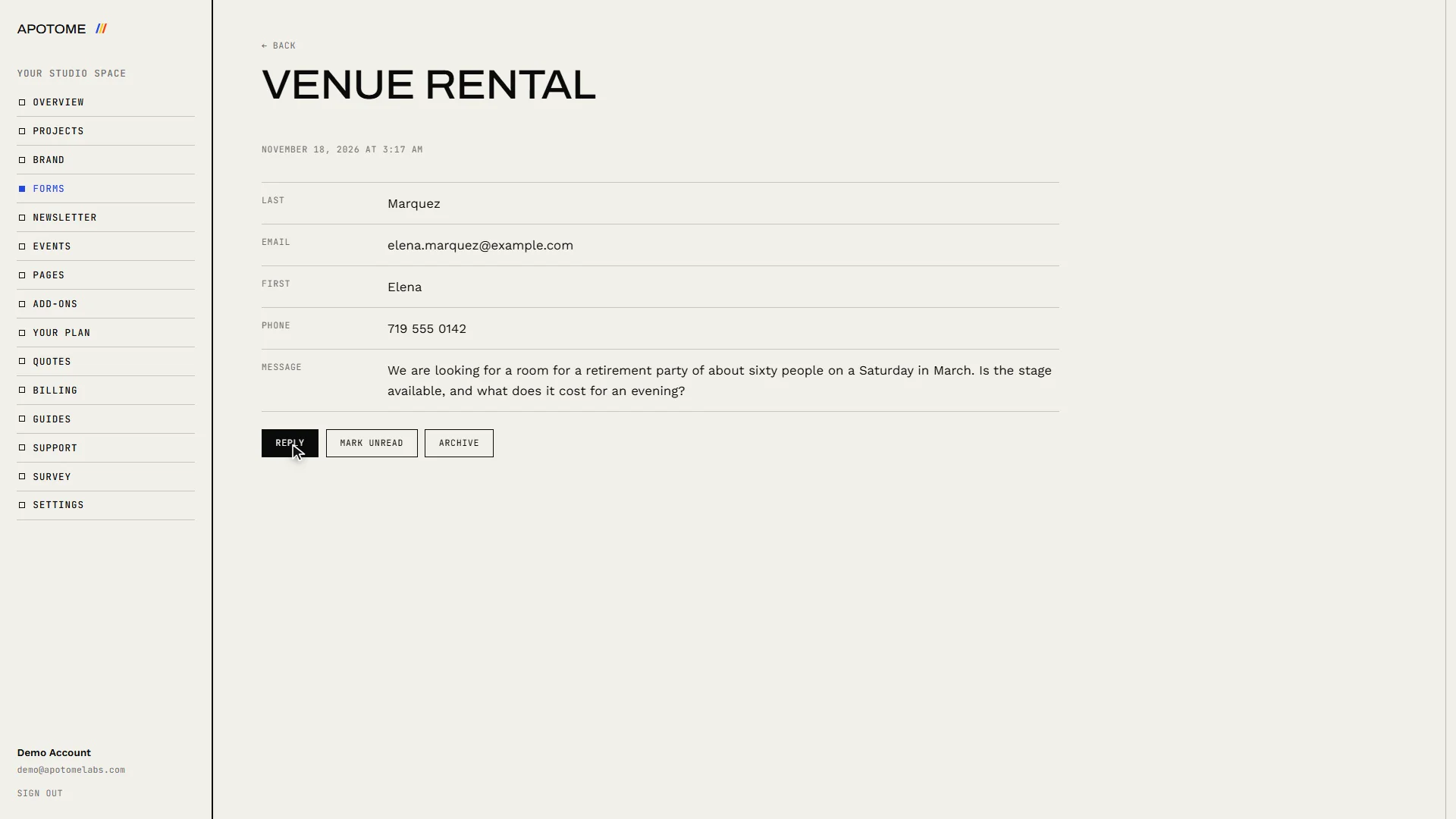
Archive clears a message out of your inbox once it is dealt with. Mark unread keeps it standing out, as a reminder to come back to it.
Export everything
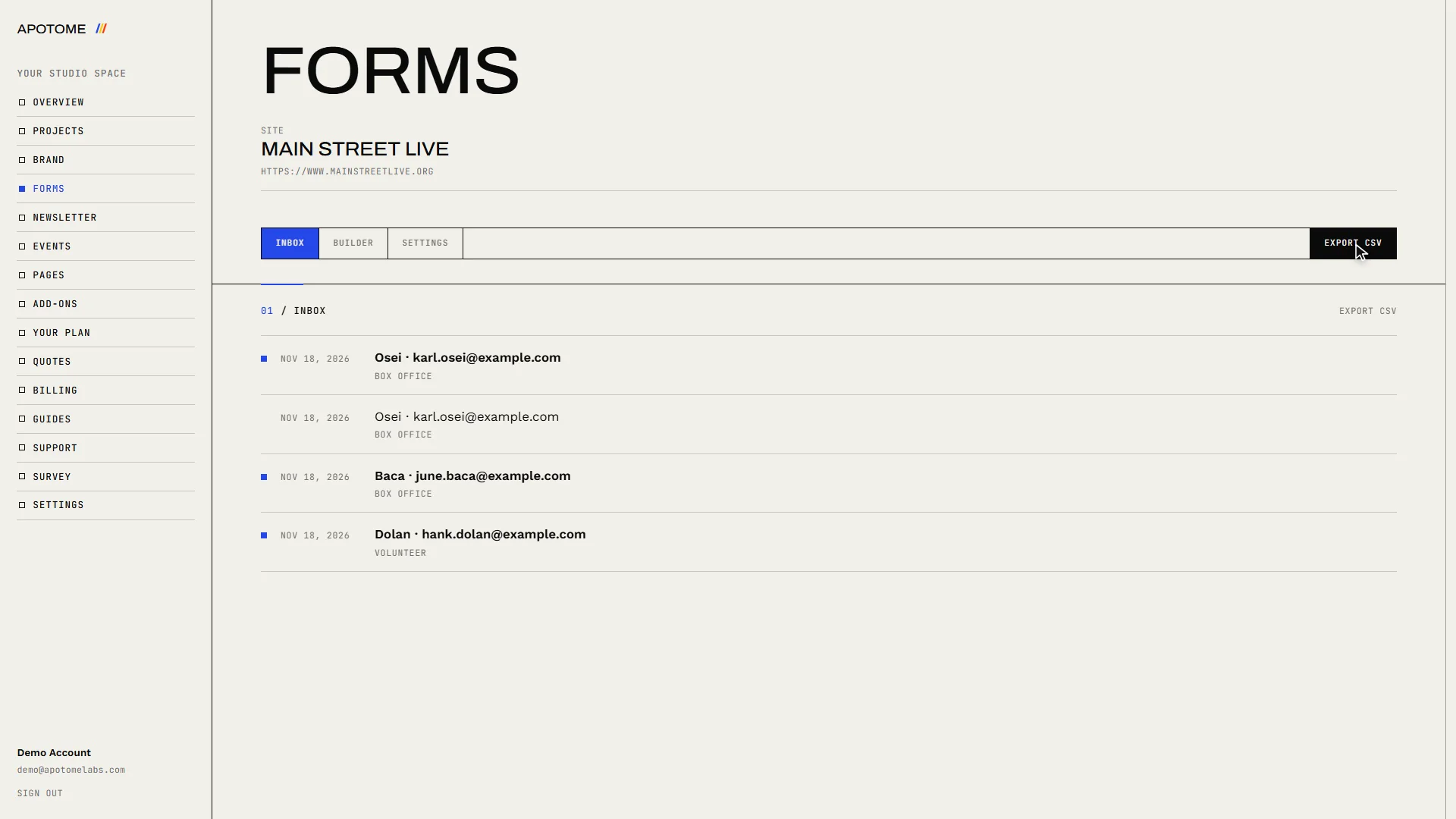
Back in the inbox, Export CSV downloads every message as a spreadsheet, which is handy for a volunteer list.
Related guides
- A tour of your portal: A two-minute walk through your Apotome Labs portal: what each item in the menu is for, from your project and brand to events, newsletter, billing and support.
- Edit your website: Change the words on your website yourself: open the editor from your portal, click the text, type, and publish. Your site updates in about a minute.
- Sign in to your portal: Sign in to your Apotome Labs portal with Google or with your email and password, reset a forgotten password, and sign out again.