Edit your website
Change the words on your website yourself: open the editor from your portal, click the text, type, and publish. Your site updates in about a minute.
Basics guide, about 1 minute. Recorded November 18, 2026.
Open the editor
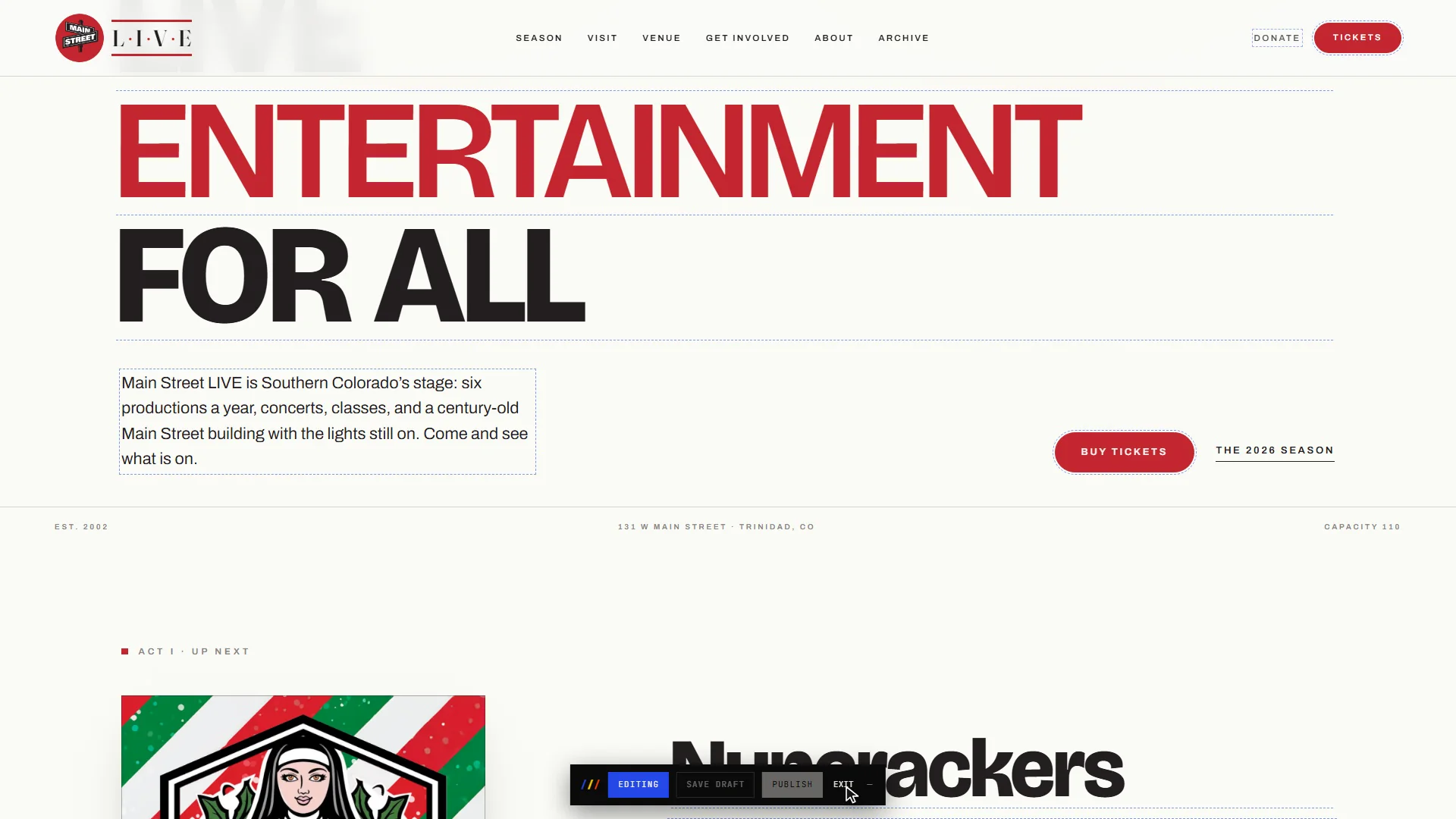
On Overview, choose Edit your site. Your website opens in a new tab, already signed in, with a small black bar at the bottom of the page.

Switch editing on
In the bar, choose Edit. It turns blue and reads Editing, and everything you can change gets a dotted outline.
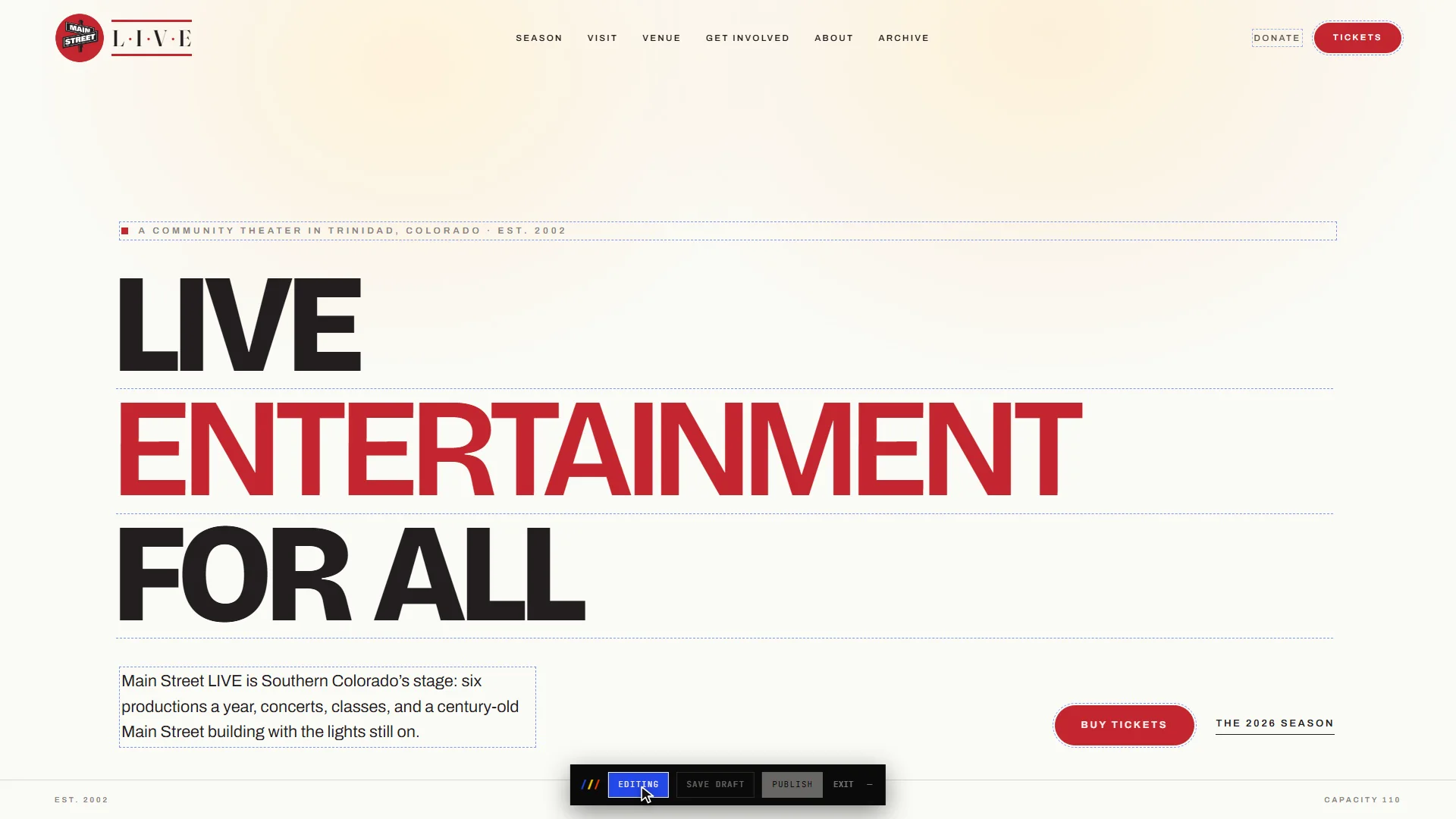
Click the words and type
Click any outlined text and type, as you would in a document. The bar counts what you have changed.
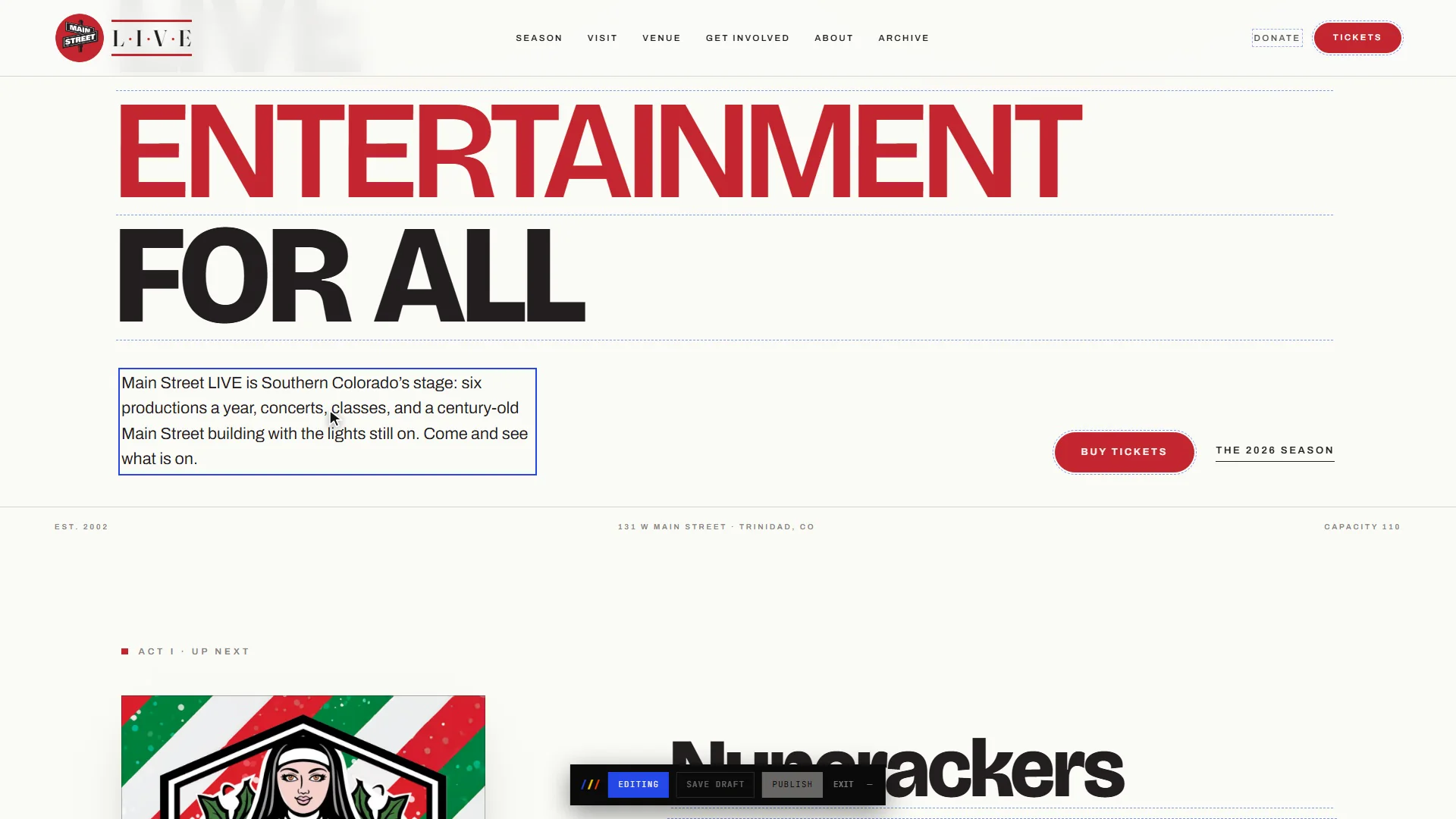
Save a draft, or publish
Save draft keeps your changes without showing them to visitors, so you can come back later. Publish makes them live.
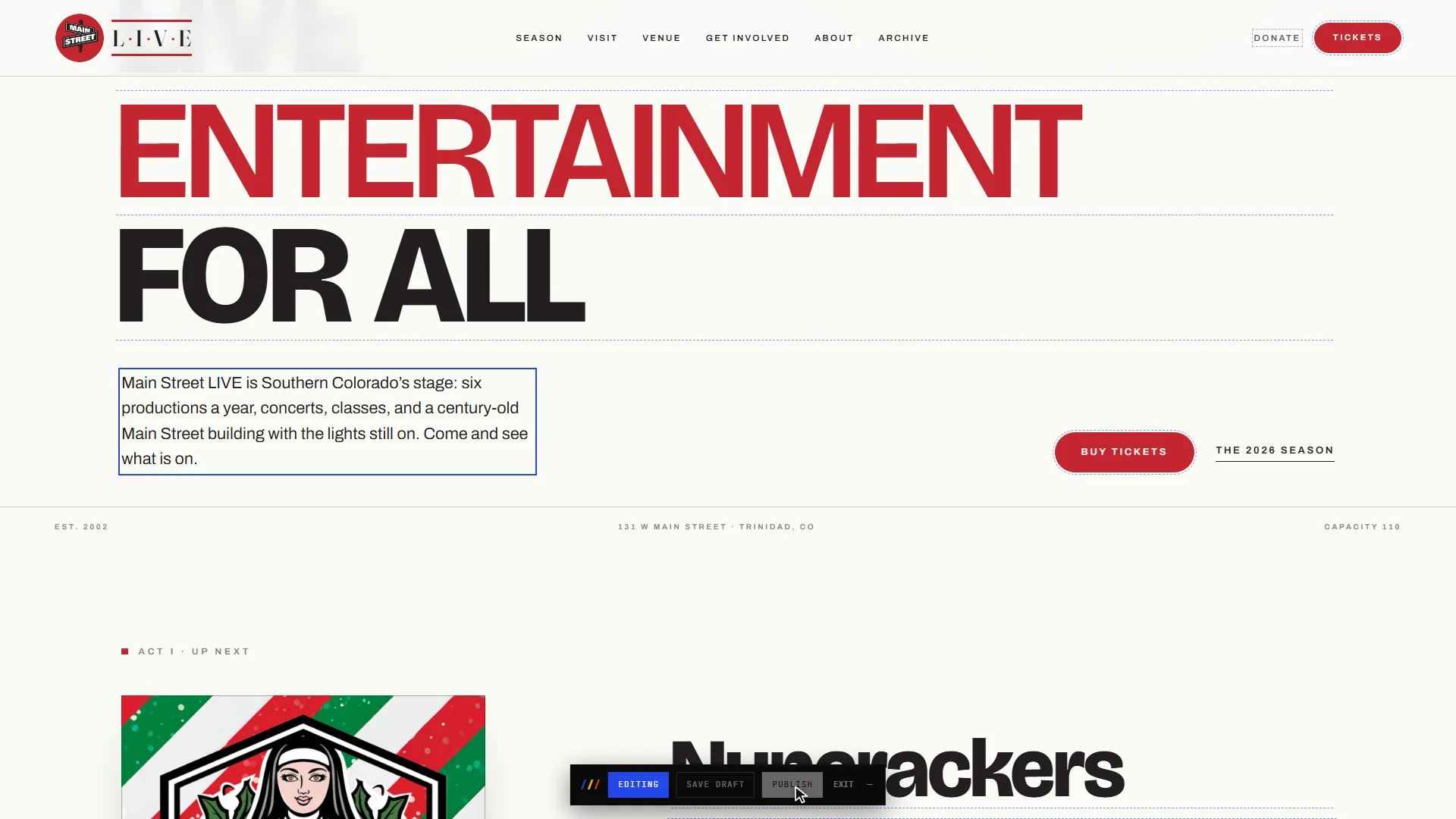
Publish
Choose Publish. The bar confirms it, and your website updates for everyone in about a minute.
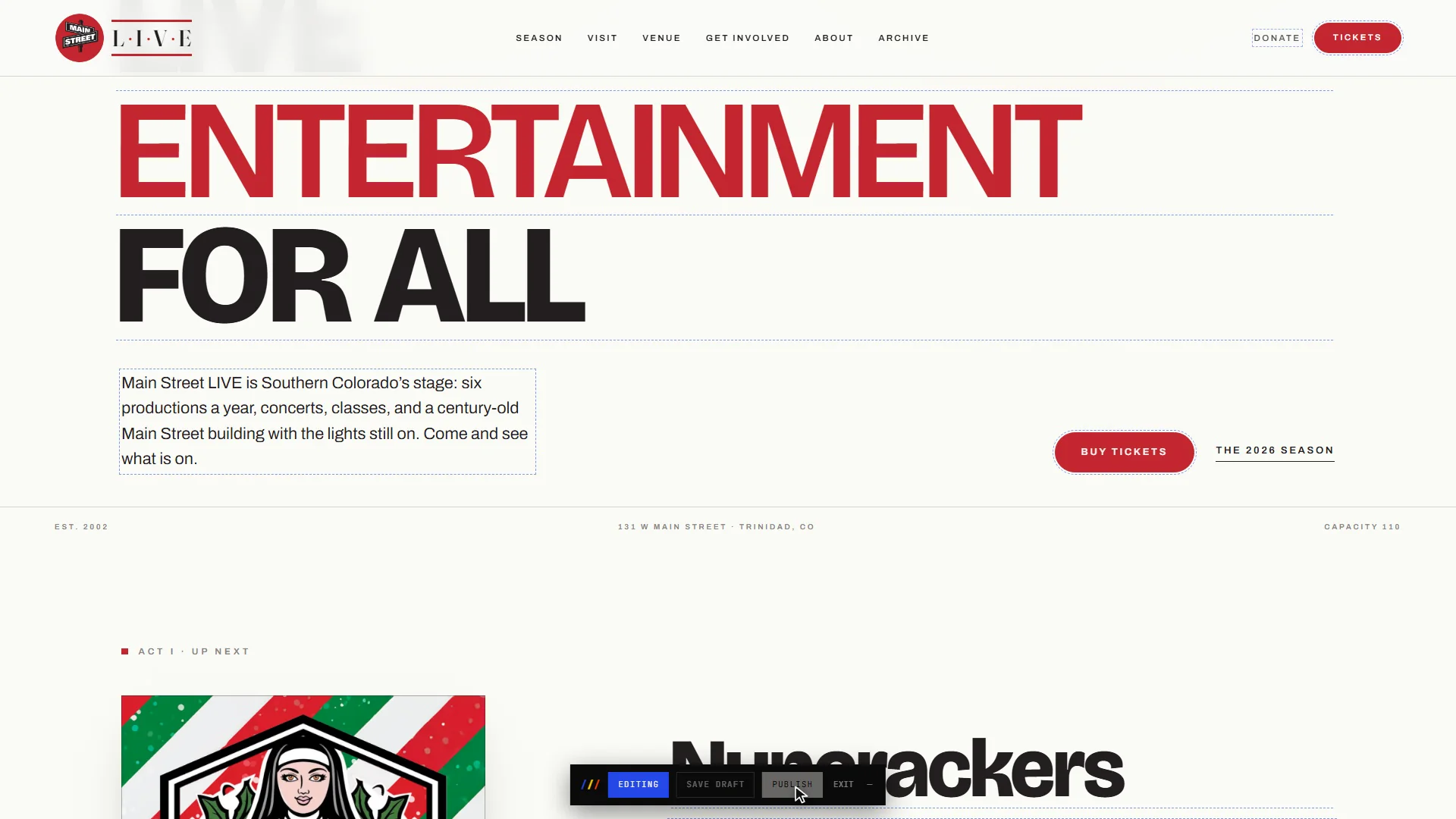
Leave the editor
When you are done, choose Exit and close the tab. To edit again, come back through Edit your site in your portal.
Related guides
- A tour of your portal: A two-minute walk through your Apotome Labs portal: what each item in the menu is for, from your project and brand to events, newsletter, billing and support.
- Sign in to your portal: Sign in to your Apotome Labs portal with Google or with your email and password, reset a forgotten password, and sign out again.
- Add an event: Add a new event to your website from the Apotome portal: title, description, date, time and venue, then publish. About two minutes.