Your newsletter audience
See who is on your mailing list, what confirmed means, how to export or remove people, and how to set the name and address every newsletter carries.
Newsletter guide, about 2 minutes. Recorded November 18, 2026.
Open Newsletter
Choose Newsletter in the menu on the left. It opens on the Audience tab.
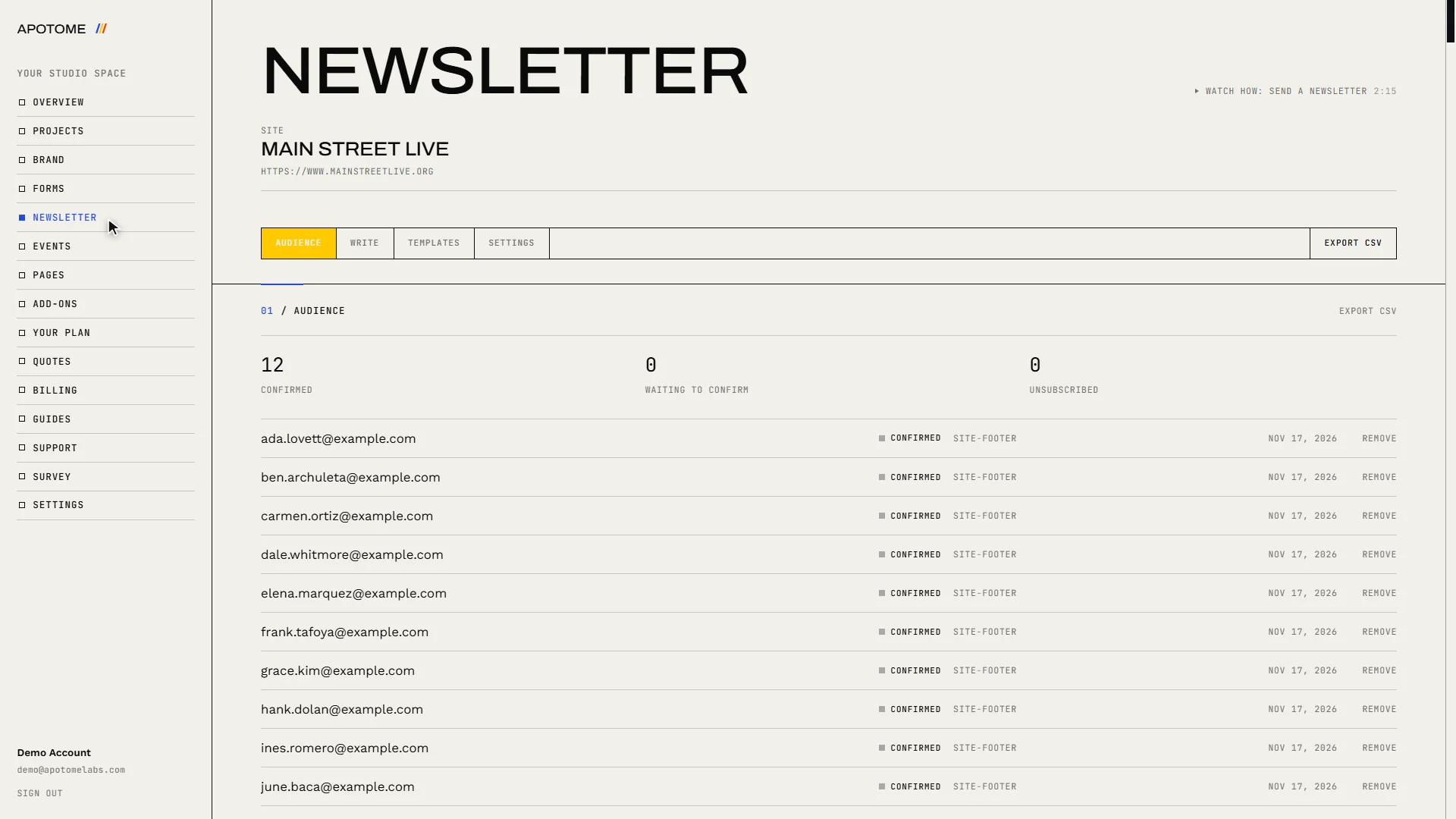
Read the three numbers
Confirmed is everyone who will receive your next newsletter. Waiting to confirm signed up but have not yet clicked the link in the email they were sent. Unsubscribed asked to stop, and are never written to again.
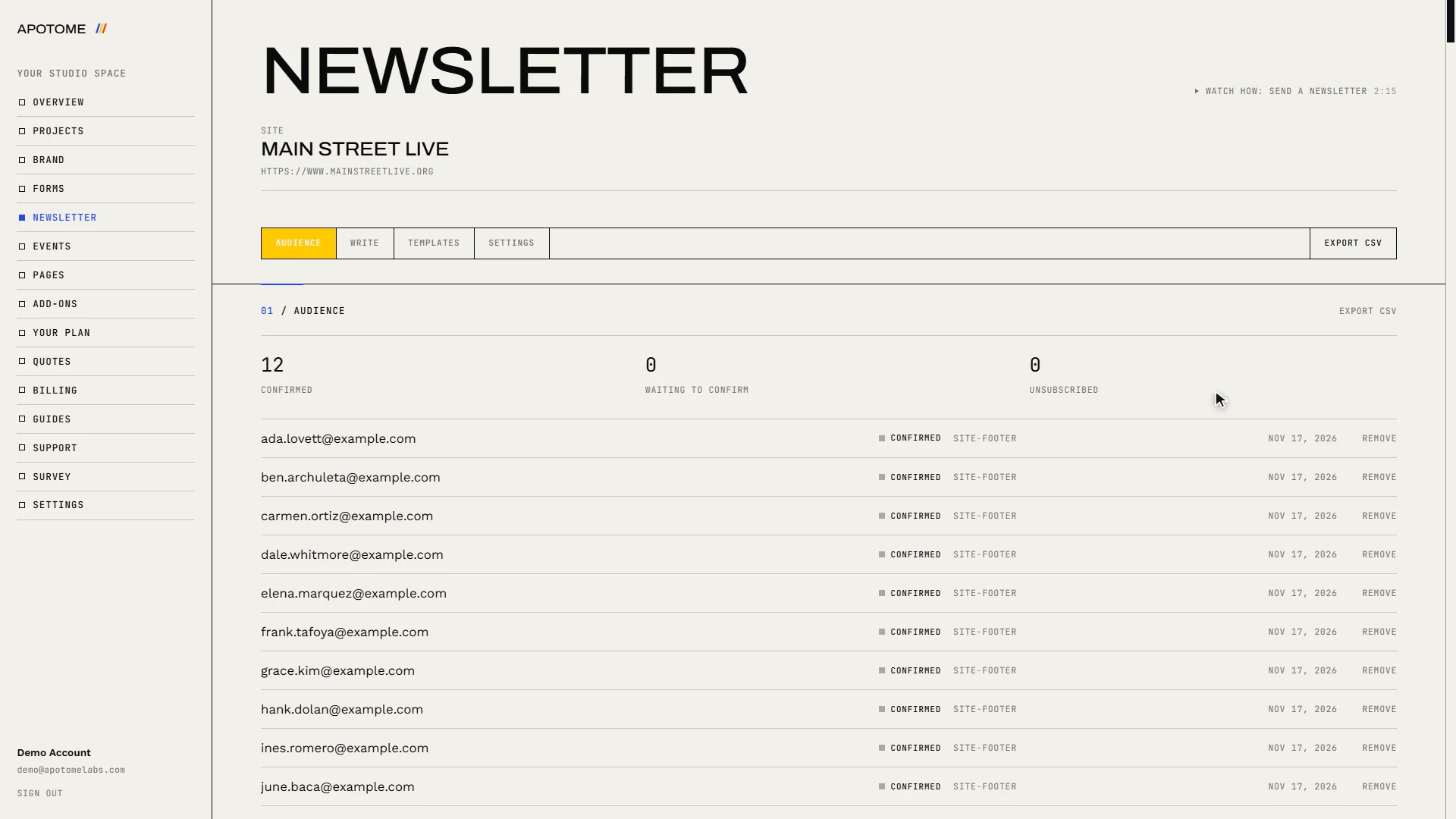
Export or remove
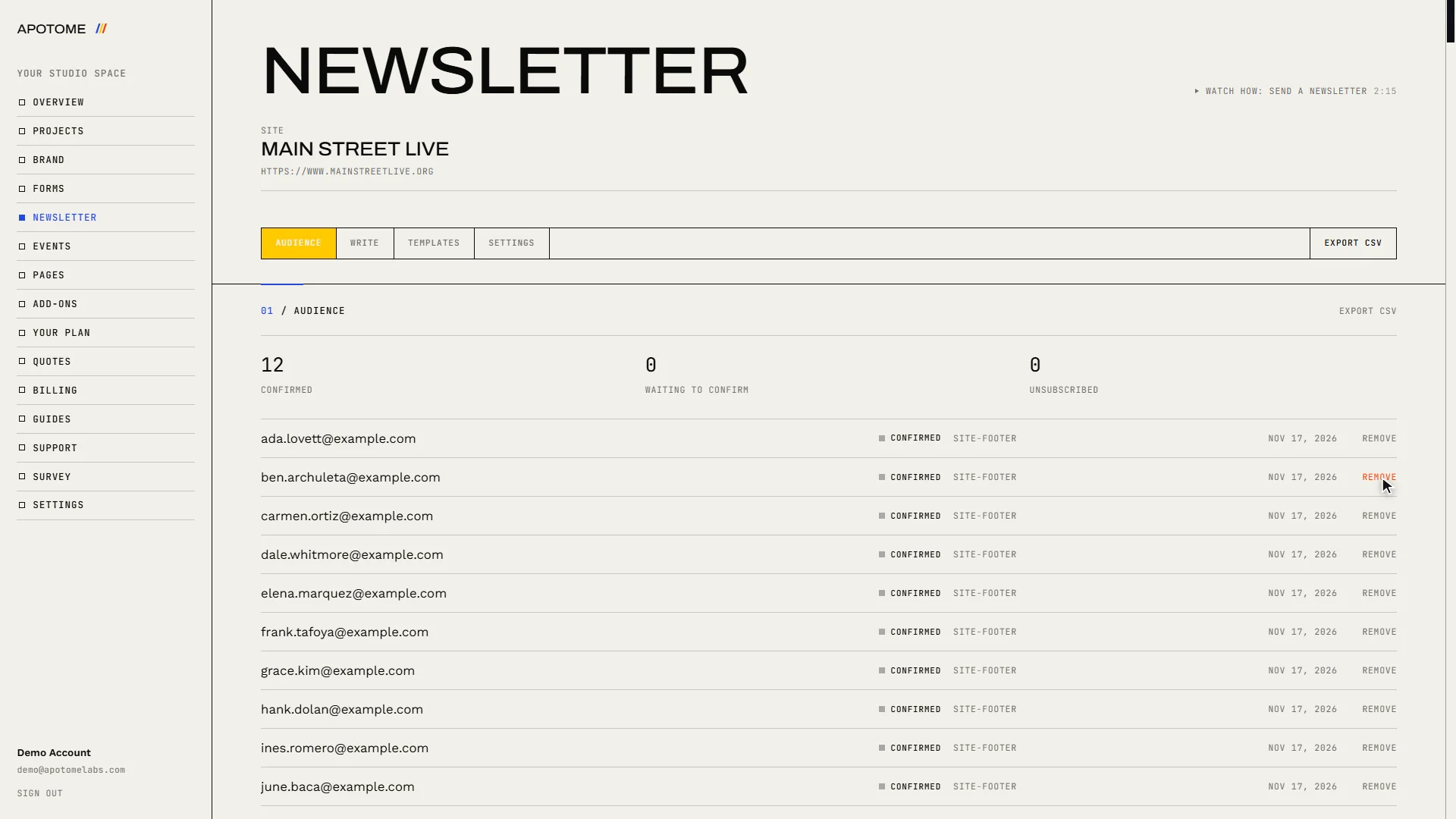
Export CSV downloads the whole list as a spreadsheet. If someone asks to be taken off, choose Remove beside their address.
Open Settings
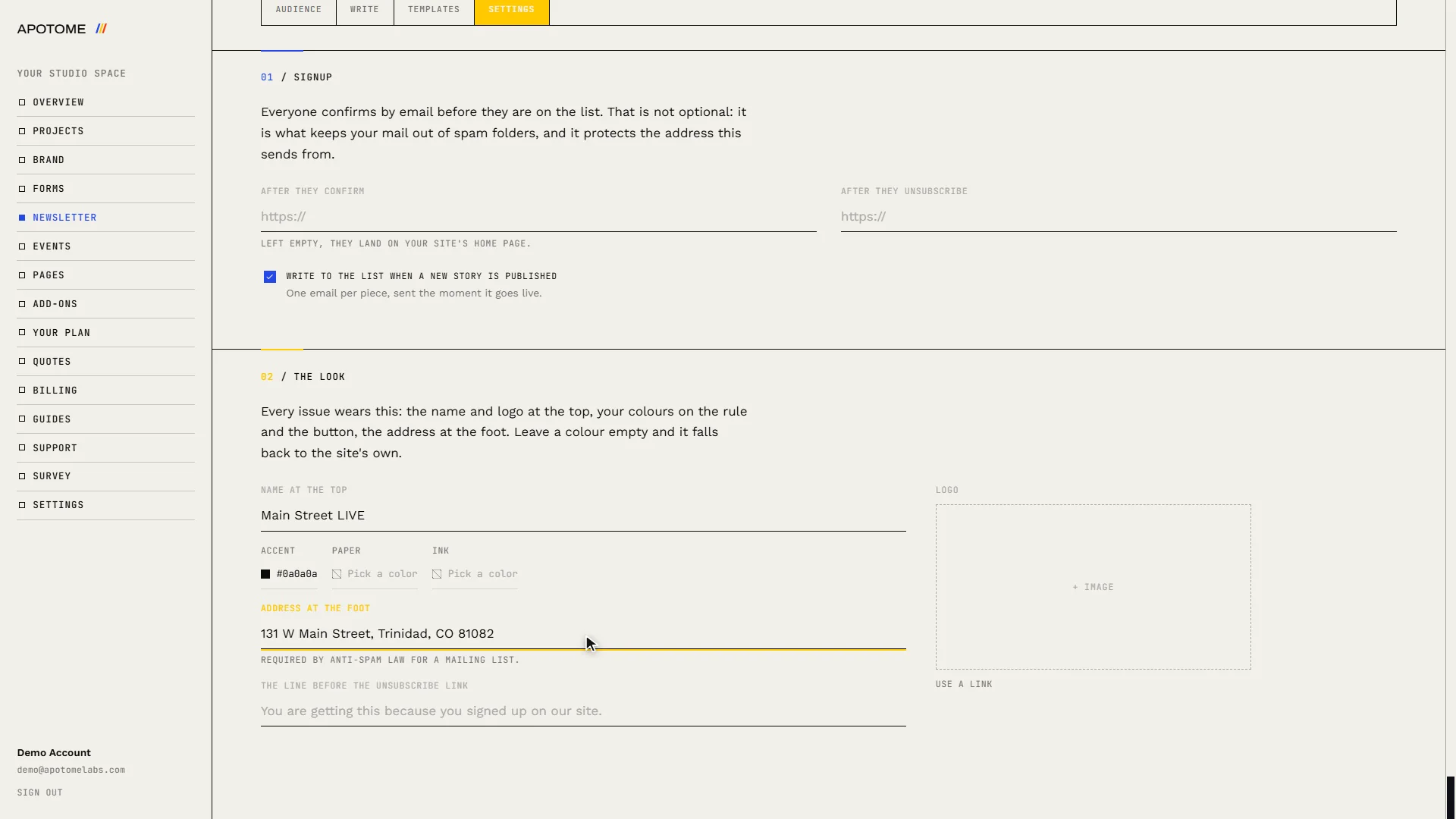
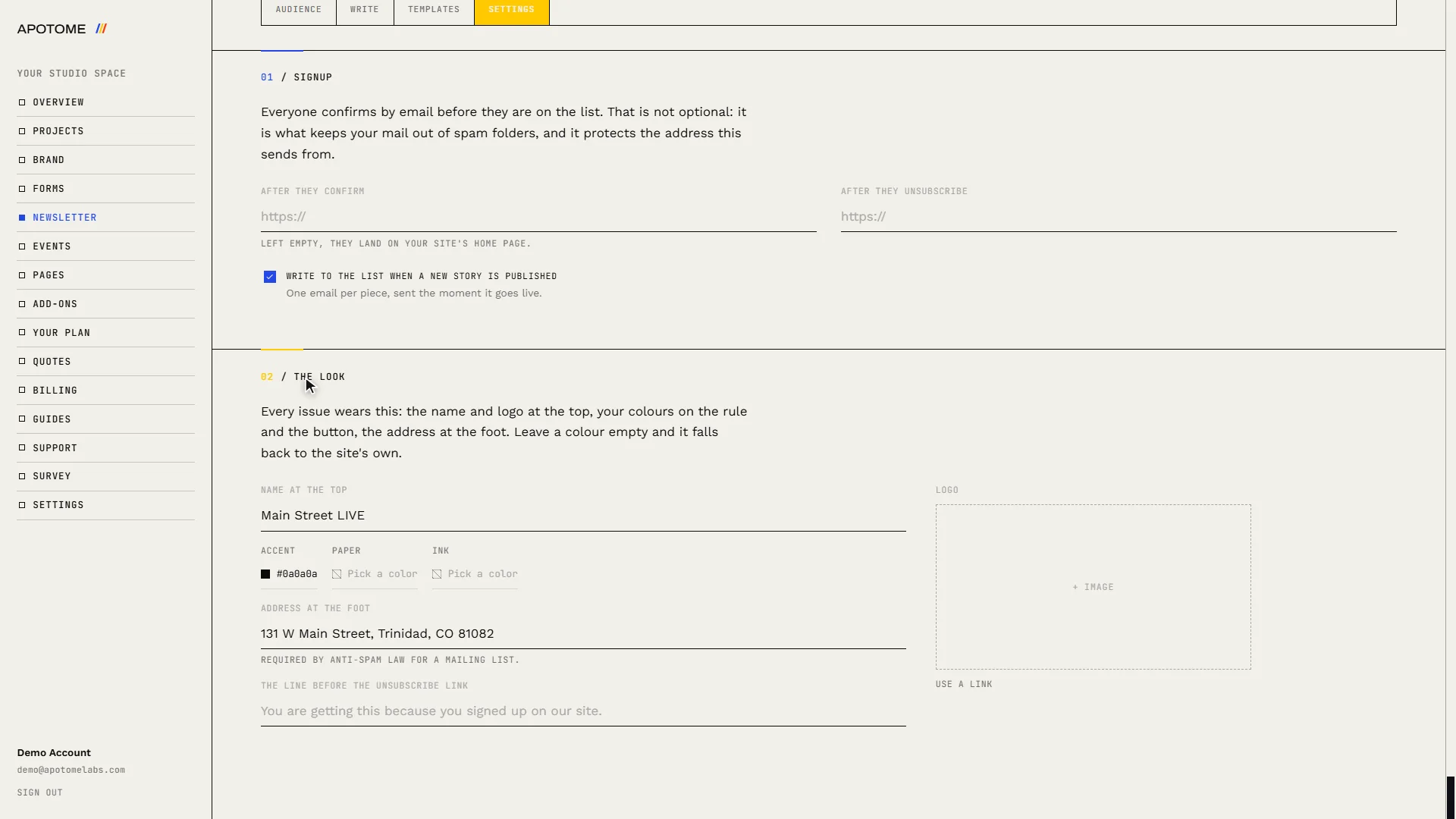
Choose the Settings tab. Everyone confirms by email before they join your list. That is what keeps your newsletters out of spam folders, so it cannot be switched off.
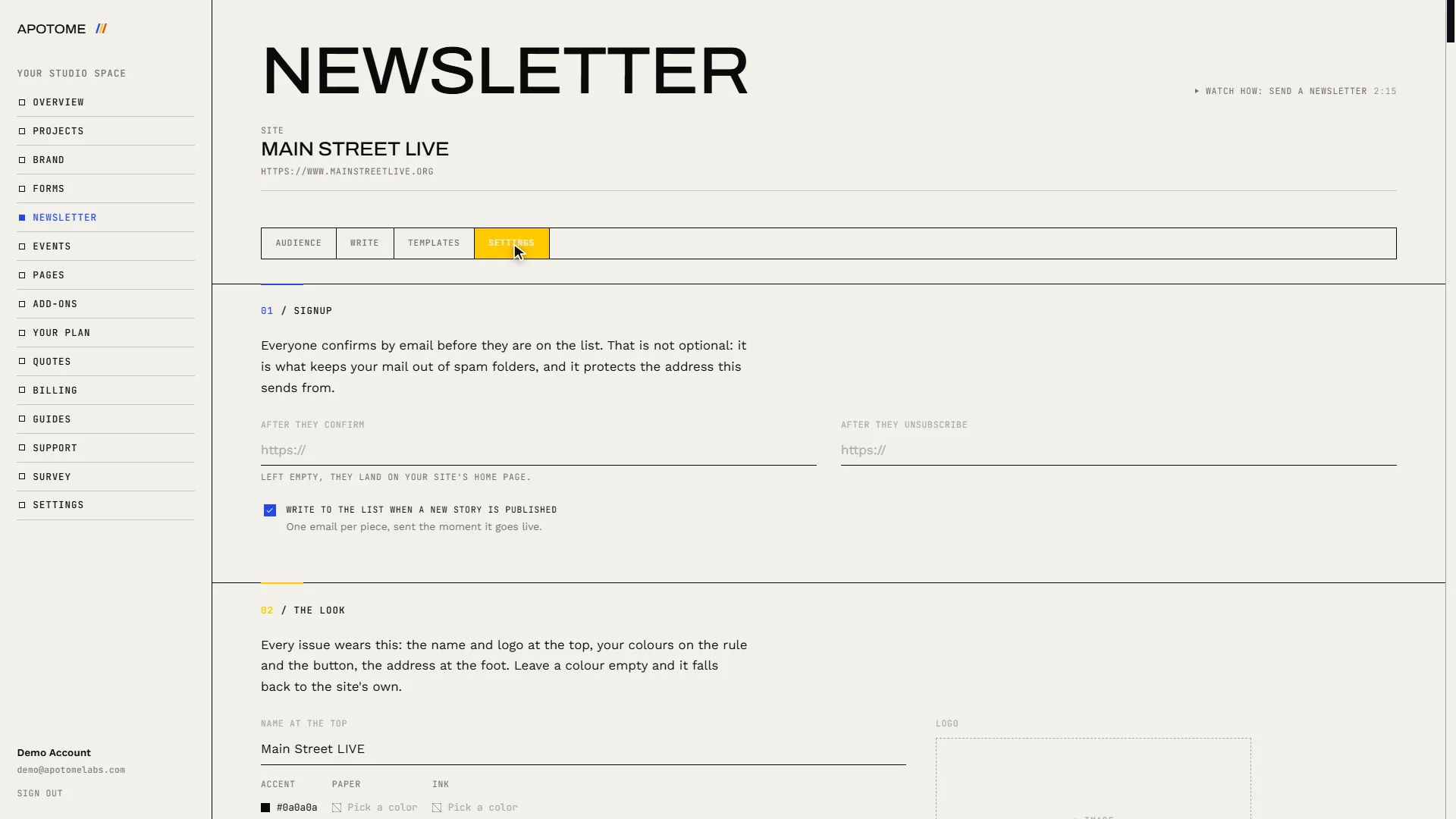
Set the name and address
Under The look, check the Name at the top and fill in the Address at the foot. A mailing address is required by anti-spam law. You can also set your colours and logo here.
It saves itself
There is no save button on this tab. Click anywhere else and a small Saved note confirms it. Every newsletter you send from now on carries these details.
Related guides
- Send a newsletter: Write a newsletter in your Apotome portal and send it to everyone who signed up on your website: subject, heading, text, event listing, test, send.
- A tour of your portal: A two-minute walk through your Apotome Labs portal: what each item in the menu is for, from your project and brand to events, newsletter, billing and support.
- Edit your website: Change the words on your website yourself: open the editor from your portal, click the text, type, and publish. Your site updates in about a minute.