Change or remove an event
Update an event that is already on your website (its time, its description) and remove one you no longer need, from the Events page of your portal.
Events guide, about 1 minute. Recorded November 18, 2026.
Open Events
Sign in to your portal and choose Events in the menu on the left.
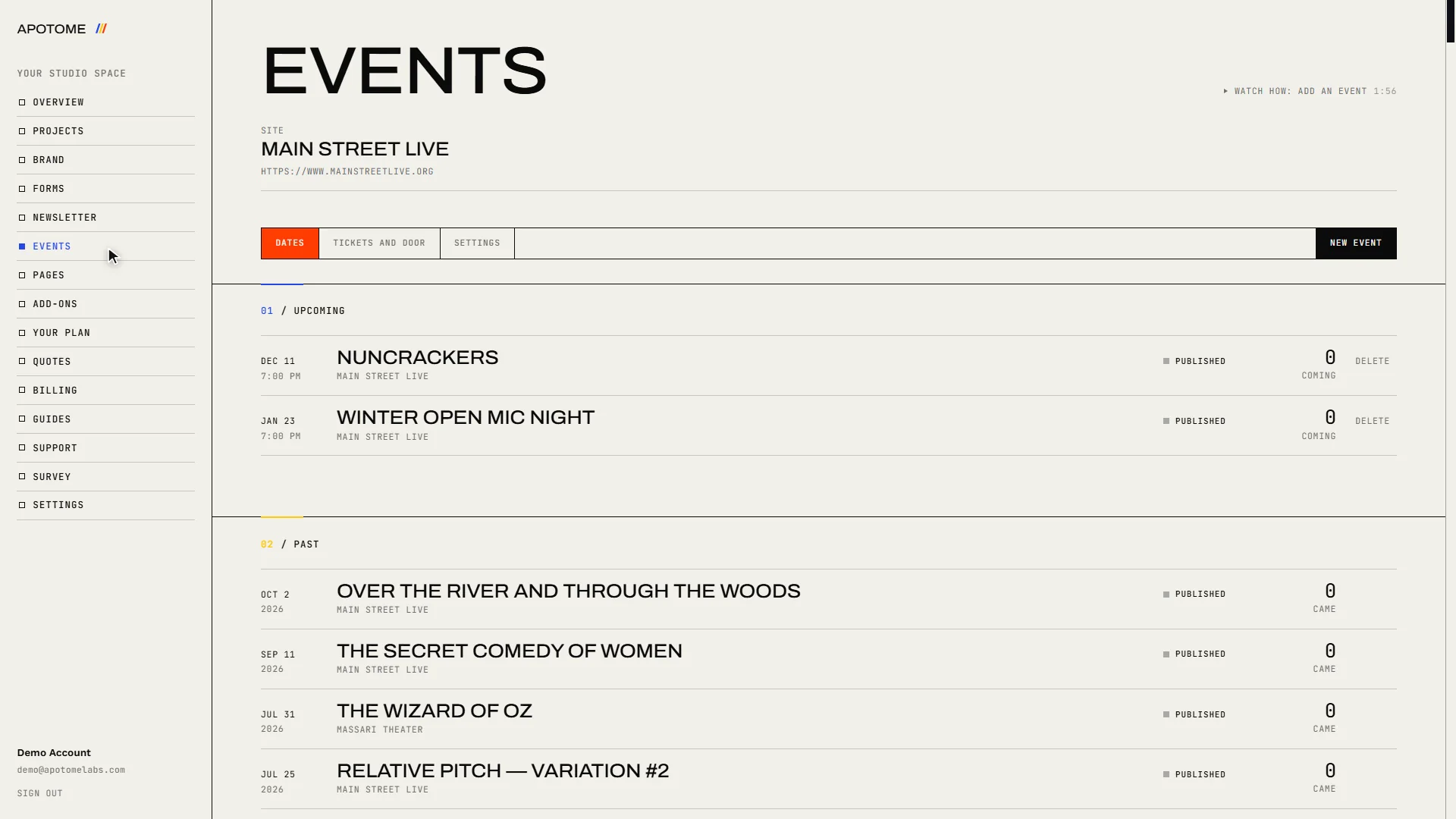
Choose the event
Find the event under Upcoming and select its name. It opens with everything you entered before.
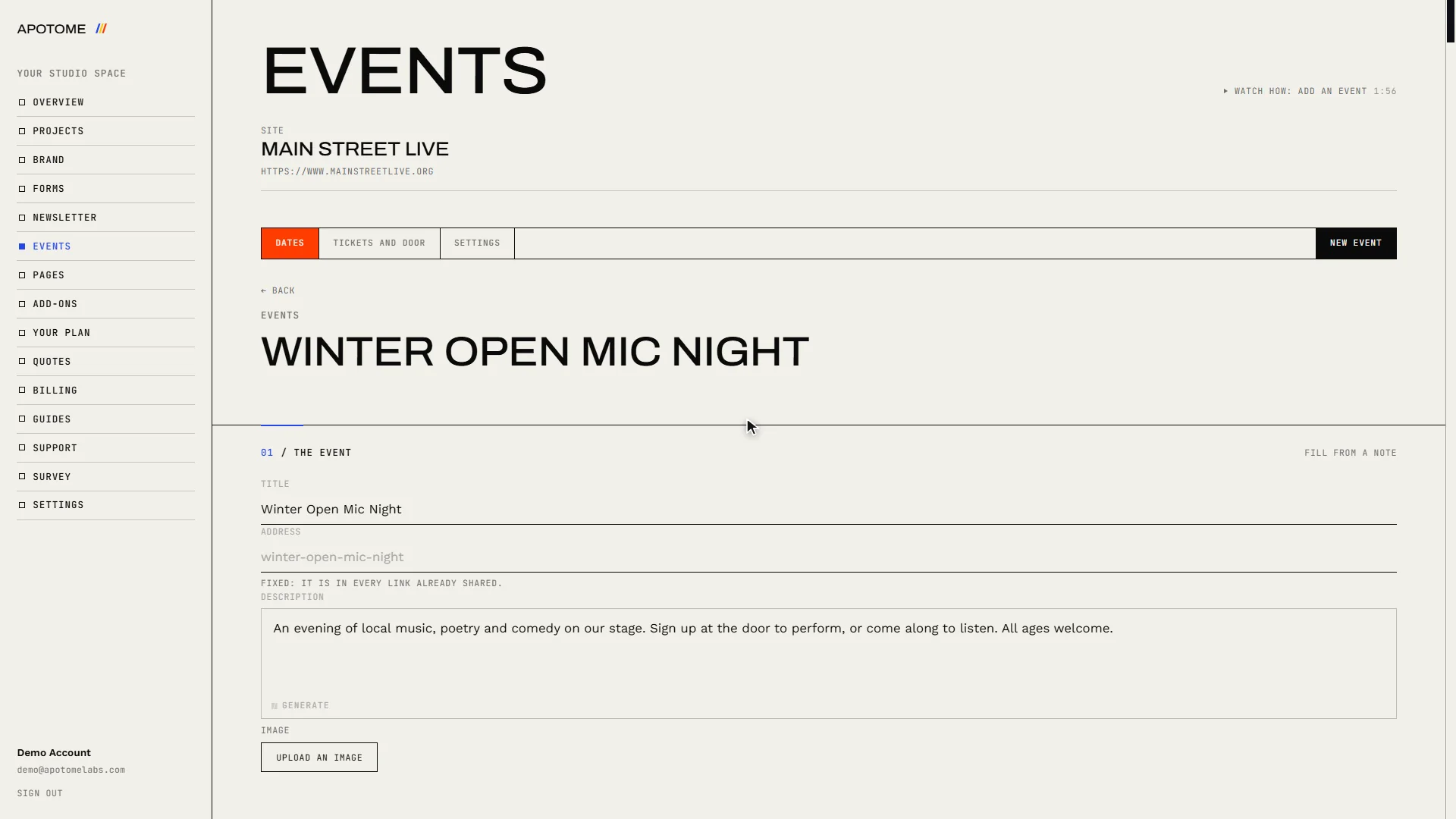
Change the details
Change whatever needs changing. Text boxes can be typed into directly; for the date or time, choose it and pick the new one. The web address stays fixed, because it is already in links people have shared.
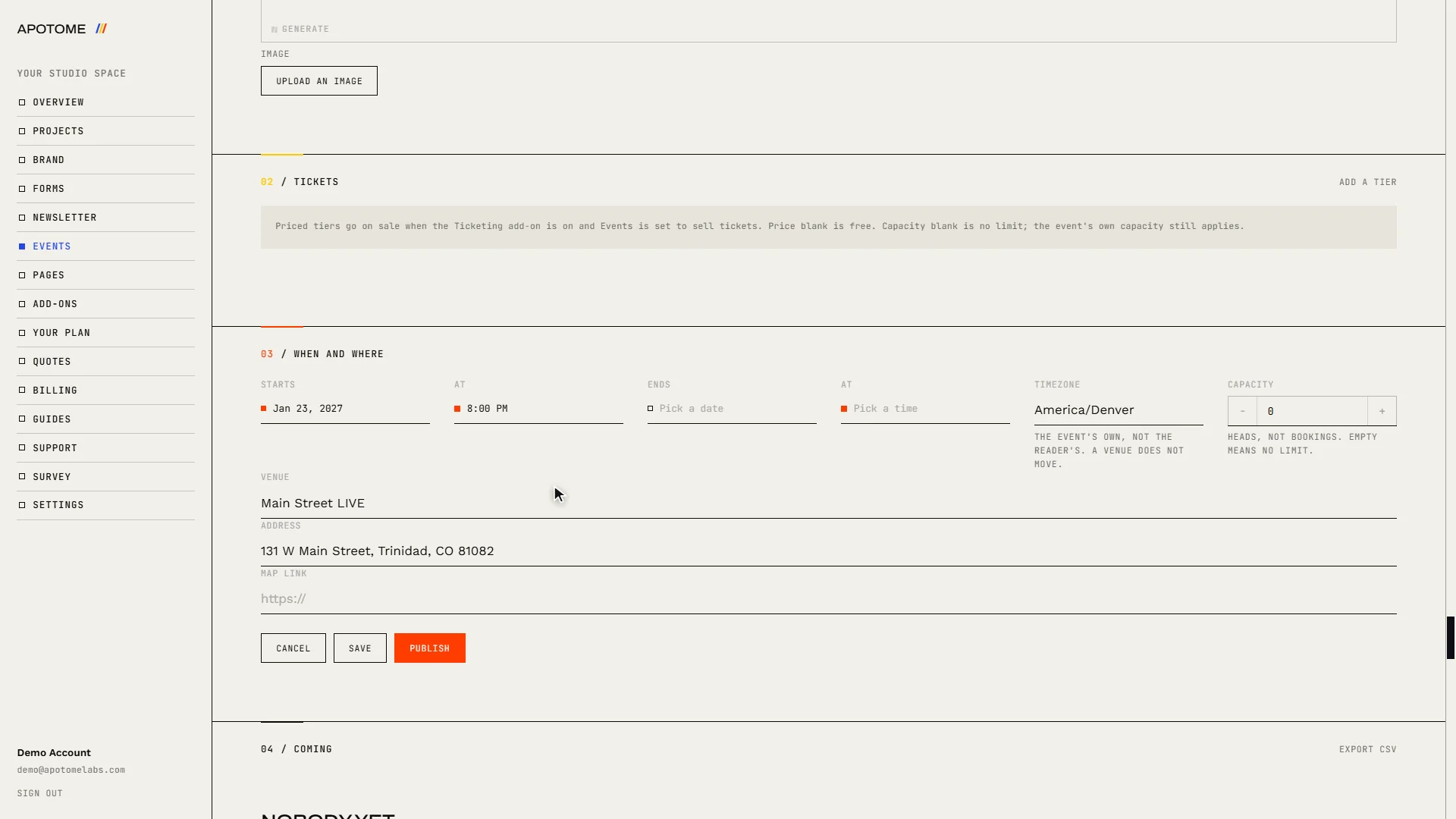
Publish the change
Choose Publish. Your website shows the new details straight away. There is nothing else to update.
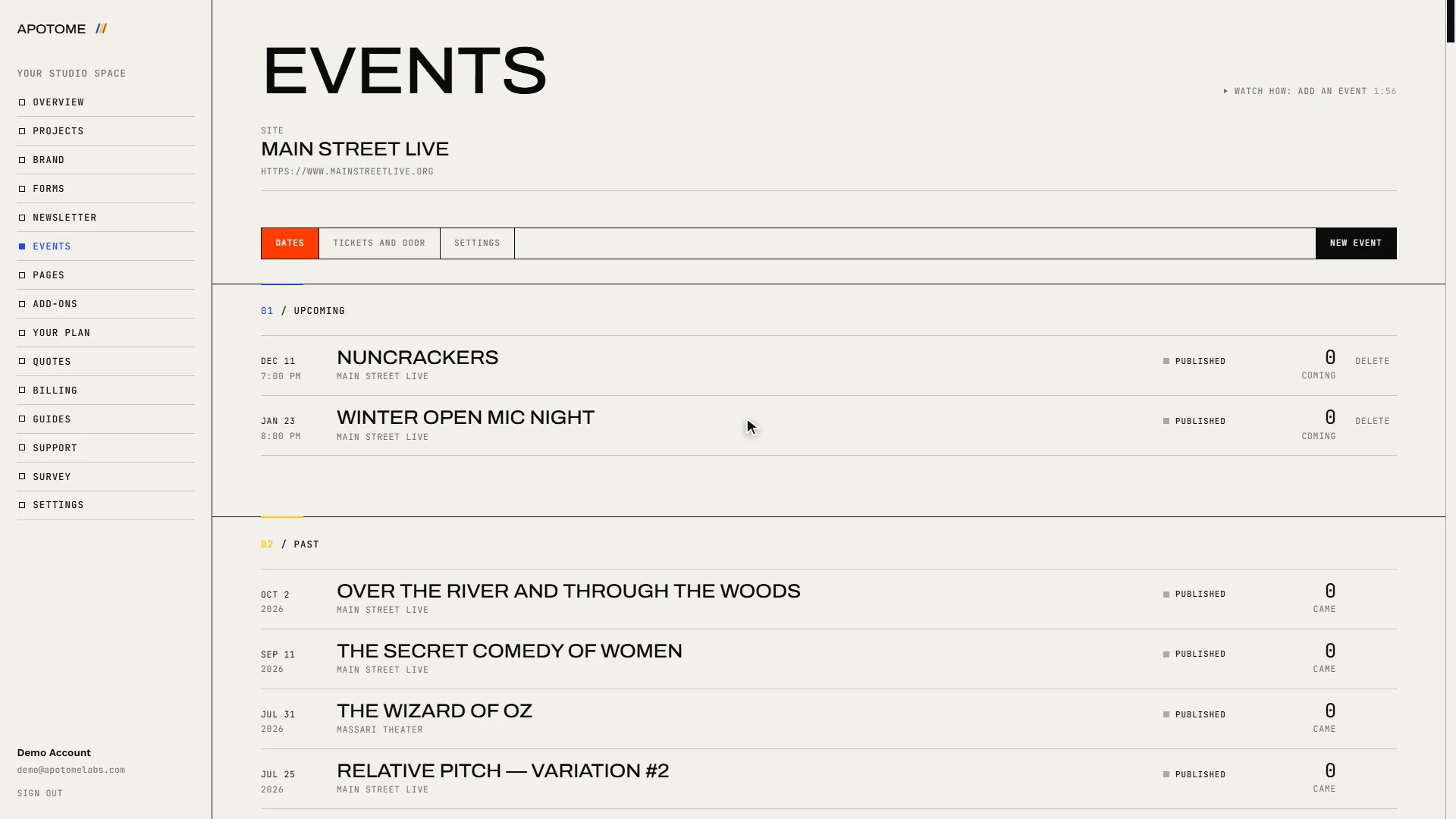
Remove an event
To take an event off your website altogether, choose Delete at the end of its row. You are asked to confirm, because the list of people who put their names down goes with it. Export that list from inside the event first if you need it.
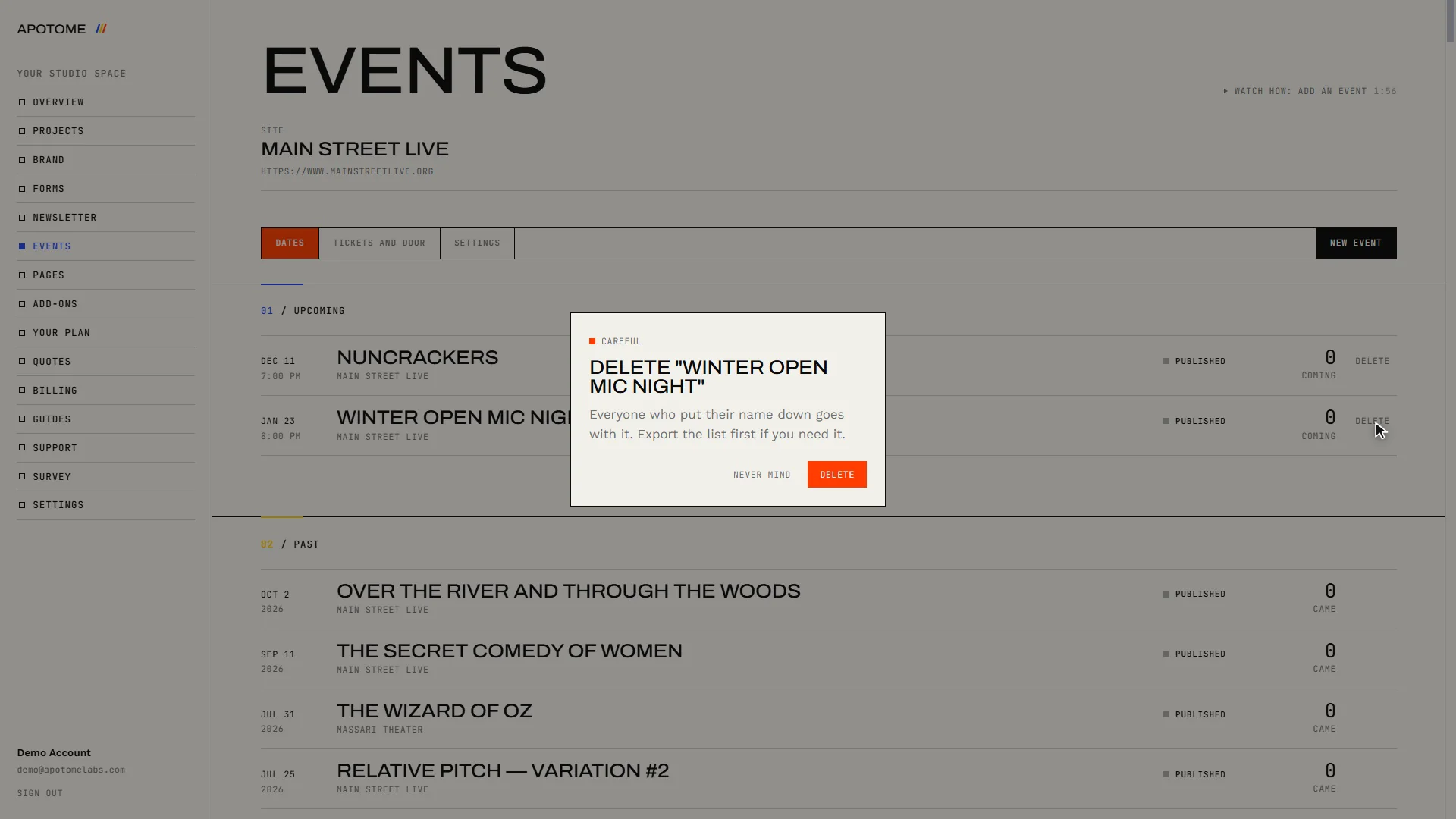
Confirm
Choose Delete in the confirmation. The event leaves your list and your website.
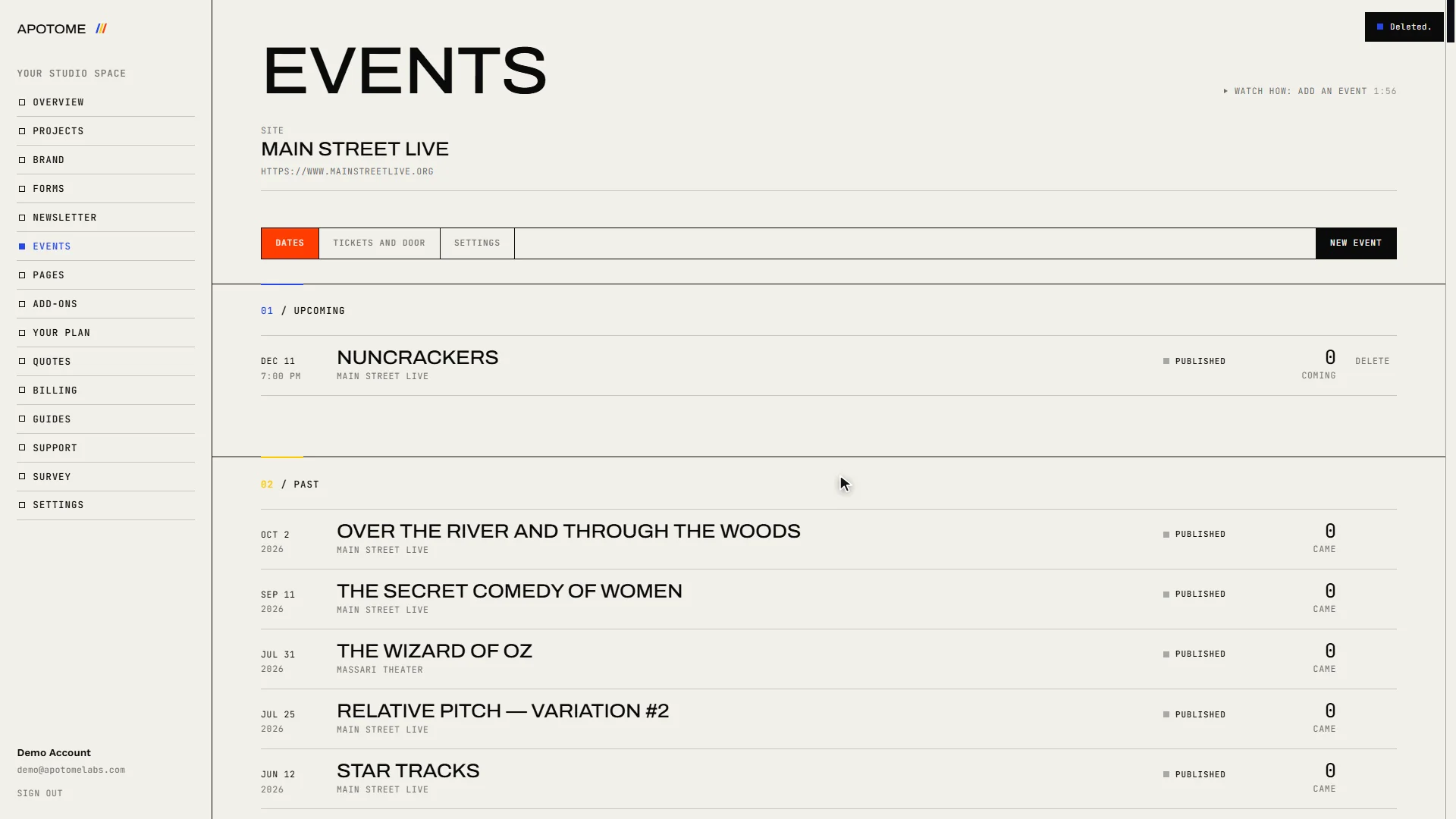
Related guides
- Add an event: Add a new event to your website from the Apotome portal: title, description, date, time and venue, then publish. About two minutes.
- A tour of your portal: A two-minute walk through your Apotome Labs portal: what each item in the menu is for, from your project and brand to events, newsletter, billing and support.
- Edit your website: Change the words on your website yourself: open the editor from your portal, click the text, type, and publish. Your site updates in about a minute.